No matter what you're studying, technology will be part of your education. IT Services can support you with getting your student email and other accounts set up, troubleshooting issues, connecting to Wi-Fi and more. If you need help, contact the IT Service Desk.
IT Services Information and Support
Connecting to Wi-Fi
Students can connect to free high-speed Wi-Fi at all our campuses and learning centres on the "Student-Selkirk" network.
How do I connect?
Windows Devices
Windows 10
- Select the "Network" icon on the taskbar.
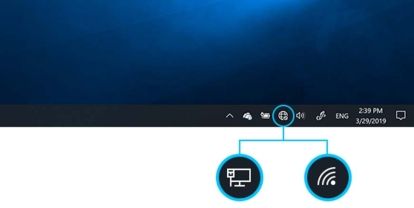
- Click on "Student-Selkirk" from the list of networks. Select "Connect."
- Type in your Selkirk College username and password. Click "Ok."
- Your username is your first part of your account name (in bold) johnsmith@edu.selkirk.ca
- Click on "Connect" and you are all set!
Windows 11
- Select the "Network," "Sound" or "Battery" icon on the far-right side of the taskbar to open quick settings.
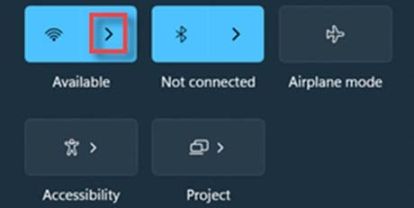
- Click on the Wi-Fi quick setting.
- Click on "Student-Selkirk" from the list of networks. Select "Connect."
- Type in your Selkirk College username and password. Click "Ok."
- Your username is your first part of your account name (in bold) johnsmith@edu.selkirk.ca
- Click on "Connect" and you are all set!
What if I can't connect?
- Please update your operating system as per your device manufacturer's instruction manual and try again.
- Please reboot/restart your device and try again.
- Please document the room/location you are in, the time of day and date, the device you are using and operating system and notify our IT Helpdesk Team.
Logging in for the First Time
Your Selkirk College account is created as soon as you are accepted to any college program. Even if you haven’t enrolled in any classes yet, you can use your new Selkirk College account to apply for scholarships, get familiar with Moodle, and use your email.
When your account is created, you’ll get an email with your new Selkirk College email address.
Set Up Your Account
- Go to Microsoft Online Password Reset
- Enter your Selkirk College email address (e.g., @email)
- Click "Forgot My Password."
- Look for an email from Microsoft in your personal email address inbox. The email will contain a link to reset your password.
- Returning students are eligible to use your previous password.
- If you are unsuccessful at either logging in or changing your password, please submit a ticket through the IT Service Desk.
Change or reset your password
How to change your password
You can change your password or add other authentication methods any time
Click the Change Password link
Enter your new password in the pop-up
You can add another login method, like your phone number, on the same screen.
How to reset your password
You can reset your password if you’ve forgotten it.
Enter your email address and follow the prompts. Microsoft will send a reset link to your personal email, or phone number if you set that up.
If you are unsuccessful at either logging in or changing your password, please submit a ticket through the IT Service Desk.
Secure your account
Keep your online world safe by creating strong passwords; 81% of data breaches used stolen or weak passwords.
You can also set up other ways to authenticate to help recover your account in case you forget your password. Using other authentication options also help to keep your account secure.
Please review our Cybersecurity Information for more tips on securing your account.